Your project.
Our technical responsibility.
MT CAD takes charge of the technical side of your project, from concept to workshop drawing.
For shipyards, marine suppliers, metal fabricators and industrial companies whose technical office is at capacity.
10+
Years at Fincantieri & Ansaldo
3D
2D & 3D, concept to workshop drawing
FEM
FEM & CFD checks before you build
24h
First reply


© 2026 MT CAD — Michele Roberto Tomasin · VAT 03211830306 · Cervignano del Friuli (UD), Italy
CAD design · Sheet metal & nesting · FEM / CFD · Naval
Tell us about your project
CONTACT ME
MORE INFORMATIONS:
MICHELE ROBERTO TOMASINTen+ years of CAD work on Fincantieri and Ansaldo projects: sheet metal nesting in shipbuilding, mechanical design of electric motors in the energy sector.
Today I run MT CAD, a remote CAD studio working with a network of designersMember AIPI Italian Association of Industrial DesignersVAT 03211830306 · Friuli Venezia Giulia, Italy , cervignano del friuli
WHY MT CAD
Your standards: production-ready drawings built on your templates.
Your time zone: urgent revisions handled within the day whenever possible.
Your data protected: NDA under Italian law, signed by every designer on your project.
One contact: every drawing checked before delivery.MECHANICAL & INDUSTRIAL
2D CAD drafting and technical drawings.
3D modelling of mechanical components and assemblies.
Sheet metal design and nesting for fabrication.
Steel structure detailing.
Reverse engineering from drawings, measurements or scans.
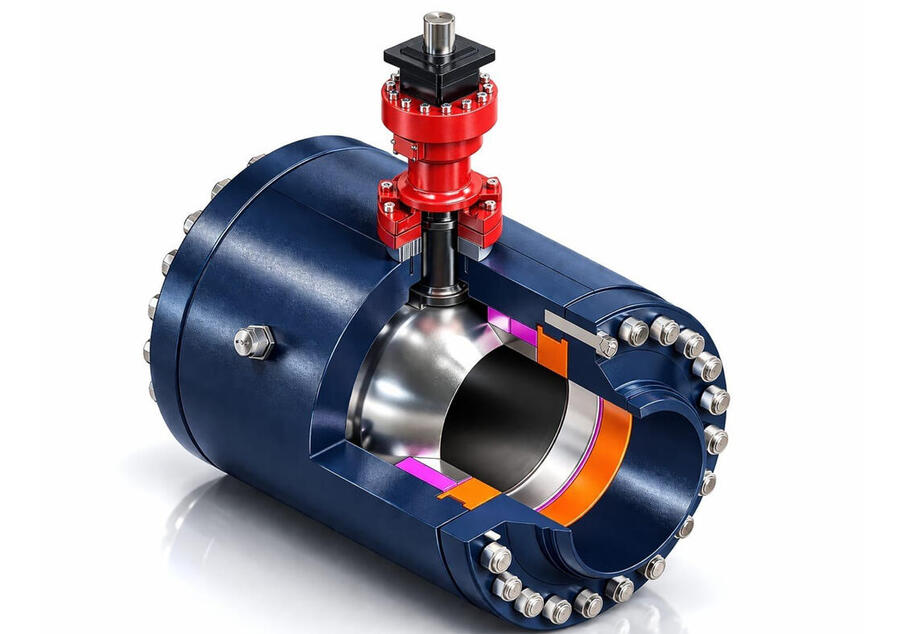
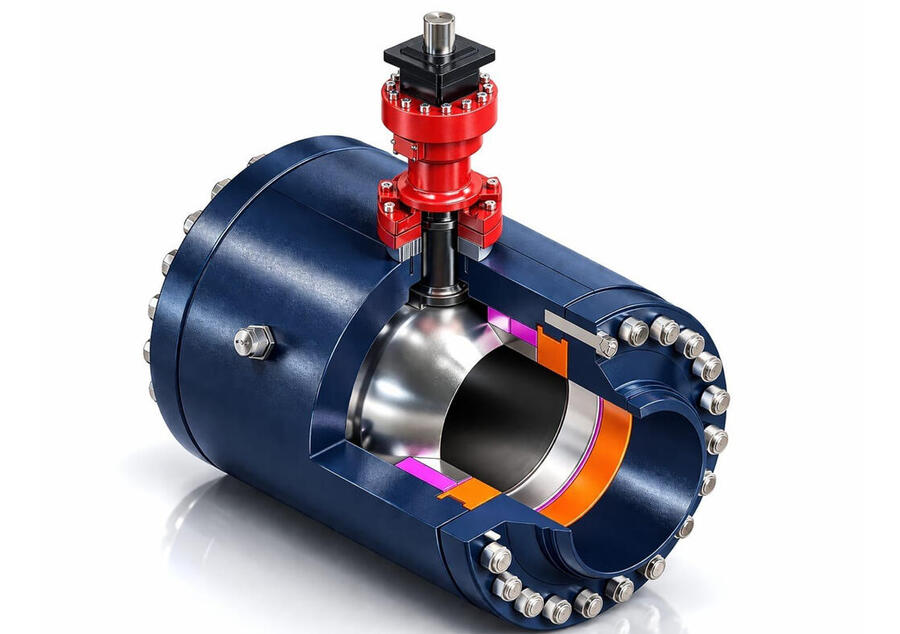
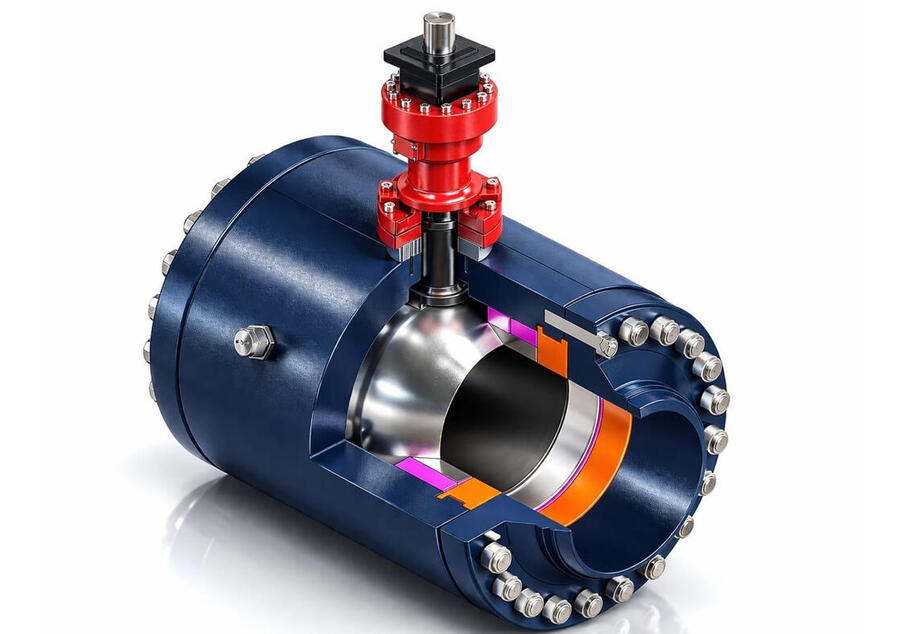
Electric motors, shafts and valves: detailed mechanical drawings.
YACHT & LEISURE BOATS
2D and 3D drawings for yachts and leisure boats: hull, deck, structures and interiors.
Production drawings and nesting for aluminium and steel hulls.
Outfitting drawings: furniture, hatches, fittings, technical spaces.
Structural calculations and CE certification by the client’s naval architect.
ARCHITECTURE & BIM
2D architectural drafting and construction drawings.
As-built drawings from point clouds and surveys.
Scan-to-BIM and 3D BIM modelling (IFC; Revit through partners).
Architectural rendering and visualization.
Always under the direction of your project architect or engineer.
ANALYSIS
FEA and CFD analysis by qualified partner engineers.
----------
You provide the engineering input, we deliver the drawings.MT-CAD.COM , [email protected]
PERCHÉ MT CAD
I vostri standard: tavole pronte per la produzione, sui vostri modelli.
Tempi rapidi: revisioni urgenti gestite in giornata, quando possibile.
Dati protetti: NDA secondo la legge italiana, firmato da ogni progettista coinvolto.
Un solo referente: ogni tavola viene controllata prima della consegna.
MECCANICA E INDUSTRIA
Disegno tecnico 2D.
Modellazione 3D di componenti e assiemi meccanici.
Progettazione di lamiera e nesting per la produzione.
Dettagli costruttivi di carpenteria metallica.
Reverse engineering da disegni, misure o scansioni.
Motori elettrici, alberi e valvole: disegni costruttivi di dettaglio.
NAUTICA DA DIPORTO
Disegni 2D e 3D per yacht e imbarcazioni da diporto: scafo, coperta, strutture e interni.
Tavole costruttive e nesting per scafi in alluminio e acciaio.
Disegni di allestimento: arredi, boccaporti, accessori, locali tecnici.
Calcoli strutturali e marcatura CE a cura del progettista navale del cliente.
ARCHITETTURA E BIM
Disegno architettonico 2D e tavole esecutive.
Rilievi as-built da nuvole di punti e misure.
Scan-to-BIM e modellazione BIM 3D (IFC; Revit tramite partner).
Rendering e visualizzazione architettonica.
Sempre sotto la direzione dell’architetto o dell’ingegnere responsabile del progetto.
ANALISI
Analisi FEM e CFD eseguite da ingegneri partner qualificati.
----------
Voi fornite i dati tecnici, noi consegniamo i disegni.
MT-CAD.COM , [email protected]
Tien jaar bij Fincantieri en Ansaldo. Nu voor uw projecten.
ERVARING bewezen in scheepsbouw, offshore en installatiebouw.
WAAROM MT CAD
Uw standaarden: productieklare opleveringen, zonder herwerk.
Uw tijdzone: spoedrevisies dezelfde dag afgerond.
Uw gegevens beschermd: NDA naar Italiaans recht.
----------
Professionele CAD 2D-ontwerp- en technische tekenservices.
CAD 3D-modellering en -ontwerp voor complexe mechanische componenten en samenstellingen.
Professionele reverse engineering-services om bestaande producten na te bouwen, te analyseren en te verbeteren.
Gespecialiseerd plaatwerkontwerp en plaatbewerking. Nesting.
Plaatwerkcomponenten op maat, ontworpen voor maakbaarheid en optimale prestaties.
BIM & Architectuur: architectonisch ontwerp vanaf nul | Scan-to-BIM | puntenwolk naar BIM | 2D-tekenwerk | 3D BIM-modellering | as-built modellering | bouwdocumentatie | architectonische rendering en visualisatie | BIM-coördinatie | gedetailleerde bouwkundige tekeningen
Complete oplossingen voor gebouwontwerp, visualisatie en bouwdocumentatie.
Geavanceerde CFD-analyses (computational fluid dynamics) voor complexe technische vraagstukken.
Professionele CFD-oplossingen voor optimalisatie en prestatieanalyse.
Eindige-elementenanalyse (FEA) voor constructieve en mechanische berekeningen.
Complete constructieve engineeringoplossingen voor industriële en commerciële projecten.
Afsluiters en elektrische schachten.MT-CAD.COM , [email protected]
WARUM MT CAD
Ihre Standards: fertigungsreife Zeichnungen auf Basis Ihrer Vorlagen.
Ihre Zeitzone: dringende Änderungen nach Möglichkeit am selben Tag.
Ihre Daten geschützt: NDA nach italienischem Recht, unterzeichnet von jedem Konstrukteur im Projekt.
Ein Ansprechpartner: jede Zeichnung wird vor der Lieferung geprüft.
MASCHINENBAU & INDUSTRIE
2D-CAD-Zeichnungen und technische Dokumentation.
3D-Modellierung von Bauteilen und Baugruppen.
Blechkonstruktion und Nesting für die Fertigung.
Detaillierung von Stahlkonstruktionen.
Reverse Engineering aus Zeichnungen, Messungen oder Scans.
Elektromotoren, Wellen und Ventile: detaillierte Fertigungszeichnungen.
YACHTEN & SPORTBOOTE
2D- und 3D-Zeichnungen für Yachten und Sportboote: Rumpf, Deck, Strukturen und Innenausbau.
Fertigungszeichnungen und Nesting für Rümpfe aus Aluminium und Stahl.
Ausrüstungszeichnungen: Möbel, Luken, Beschläge, Technikräume.
Festigkeitsberechnung und CE-Zertifizierung durch den Schiffbauingenieur des Kunden.
ARCHITEKTUR & BIM
2D-Architekturzeichnungen und Ausführungspläne.
Bestandspläne aus Punktwolken und Aufmaßen.
Scan-to-BIM und 3D-BIM-Modellierung (IFC; Revit über Partner).
Architekturvisualisierung und Rendering.
Stets unter der Leitung Ihres verantwortlichen Architekten oder Ingenieurs.
ANALYSE
FEM- und CFD-Analysen durch qualifizierte Partneringenieure.
----------
Sie liefern die technischen Vorgaben, wir liefern die Zeichnungen.
MT-CAD.COM , [email protected]
Distinta base da modello 3D: come estrarla correttamente dal CAD

Come si estrae una distinta base da un modello 3D: preparazione dei componenti, proprietà, struttura a livelli, minuteria commerciale, esportazione in Excel ed errori da evitare.Come si estrae una distinta base da un modello 3D
La distinta base è l'elenco di tutto ciò che serve per costruire un prodotto: particolari da produrre, componenti commerciali, minuteria e materiali. Scriverla a mano è lento e soggetto a errori. Con un modello 3D ben costruito, invece, la distinta base si ricava in automatico e si aggiorna da sola a ogni modifica. In questa guida vediamo come preparare il modello, come estrarre la distinta e quali errori evitare.
Cosa contiene una distinta base
Una distinta base completa riporta per ogni voce: numero di posizione, codice, descrizione, quantità, materiale e, quando servono, massa, trattamento, fornitore o norma di riferimento. Per la minuteria la descrizione indica la designazione normalizzata, per esempio vite ISO 4762 M8x20 classe 8.8.
Tutto parte dal modello
Il software CAD può inserire nella distinta solo le informazioni che trova nel modello. Per questo il lavoro vero si fa prima: ogni particolare deve essere un componente separato, con codice, descrizione e materiale compilati nelle sue proprietà. In Fusion 360 questo significa lavorare con componenti e non con semplici corpi, perché i corpi non compaiono come voci distinte. In SolidWorks e Inventor le stesse informazioni si inseriscono nelle proprietà personalizzate o nelle iProperties.
Assegnare correttamente il materiale al modello ha un doppio vantaggio: il materiale compare in distinta e il software calcola la massa di ogni particolare.
Componenti commerciali e minuteria
Viti, dadi, rondelle, cuscinetti e altri componenti commerciali si inseriscono dalle librerie del software o dai cataloghi dei fornitori. Vanno inseriti come componenti veri, con la loro designazione, così la distinta ne conta automaticamente le quantità. Disegnare una vite come semplice cilindro significa perderla dalla distinta.
Struttura della distinta: tre modi di leggerla
Solo primo livello: mostra i componenti e i sottoassiemi diretti dell'assieme principale. È utile per il montaggio finale.
Solo particolari: elenca tutti i pezzi singoli con la quantità totale, ignorando i sottoassiemi. È la vista più utile per acquisti e produzione.
Multilivello (strutturata): mostra l'albero completo, con ogni sottoassieme e i suoi componenti. È la vista più completa e rispecchia la sequenza di montaggio.
Organizzare bene i sottoassiemi nel modello, seguendo la logica di montaggio, rende la distinta multilivello chiara e leggibile.
Estrarre la distinta
Nella messa in tavola dell'assieme si inserisce la tabella della distinta, chiamata elenco parti o distinta materiali a seconda del software. I numeri di posizione nella tabella sono collegati ai palloncini sul disegno: ogni particolare è identificato sia in tavola sia nell'elenco. La distinta si può poi esportare in Excel o CSV per l'ufficio acquisti o per il gestionale aziendale.
Il vantaggio principale è l'associatività: se si aggiunge, toglie o modifica un componente nel modello, la distinta si aggiorna da sola.
Distinta tecnica e distinta di produzione
La distinta estratta dal CAD è una distinta tecnica: descrive il prodotto come è progettato. La produzione spesso ha bisogno di informazioni in più, come il grezzo di partenza (lamiera con spessore e dimensioni, barra con lunghezza di taglio), i semilavorati e le fasi di lavorazione. Queste voci si aggiungono di solito nel gestionale, partendo dalla distinta tecnica.
Gli errori più comuni
Particolari modellati come corpi invece che come componenti, che quindi non compaiono in distinta. Proprietà vuote o compilate in modo diverso da un pezzo all'altro. Lo stesso particolare salvato con due nomi diversi, che compare come due voci separate. Minuteria disegnata a mano senza designazione. Particolari speculari (destro e sinistro) non distinti. Sottoassiemi acquistati come pezzo unico ma elencati componente per componente.
In sintesi
Una distinta base affidabile non si scrive: si costruisce insieme al modello 3D. Componenti separati, proprietà compilate, minuteria da libreria e sottoassiemi ordinati permettono di ottenere una distinta corretta in pochi clic e di tenerla sempre aggiornata.
Hai assiemi da modellare o distinte da ricavare da progetti esistenti? MT CAD si occupa di modellazione 3D, messa in tavola e distinte base: scrivi a [email protected].
Bill of Materials from a 3D Model: How to Extract It Correctly
How to extract a bill of materials from a 3D CAD model: component setup, properties, BOM structure, standard parts, Excel export and the most common mistakes.How to Extract a Bill of Materials from a 3D Model
The bill of materials (BOM) is the list of everything needed to build a product: manufactured parts, purchased components, fasteners and materials. Writing it by hand is slow and error-prone. With a well-built 3D model, the BOM is generated automatically and updates itself with every change. In this guide we look at how to prepare the model, how to extract the BOM and which mistakes to avoid.
What a Bill of Materials Contains
A complete BOM lists for each item: item number, part number, description, quantity, material and, where needed, mass, finish, supplier or reference standard. For fasteners, the description gives the standard designation, for example socket head cap screw ISO 4762 M8x20 grade 8.8.
Everything Starts with the Model
CAD software can only put into the BOM the information it finds in the model. That is why the real work happens first: every part must be a separate component, with part number, description and material filled in its properties. In Fusion 360 this means working with components rather than plain bodies, because bodies do not appear as separate items. In SolidWorks and Inventor the same information goes into custom properties or iProperties.
Assigning the correct material to the model has a double benefit: the material appears in the BOM and the software calculates the mass of each part.
Purchased Parts and Fasteners
Screws, nuts, washers, bearings and other purchased components are inserted from the software libraries or from supplier catalogues. They must be real components with their designation, so the BOM counts their quantities automatically. Modeling a screw as a plain cylinder means losing it from the BOM.
BOM Structure: Three Ways to Read It
Top level only: shows the direct components and subassemblies of the main assembly. Useful for final assembly.
Parts only: lists every single part with its total quantity, ignoring subassemblies. The most useful view for purchasing and production.
Indented (multilevel): shows the complete tree, with every subassembly and its components. The most complete view, and it follows the assembly sequence.
Organising subassemblies in the model according to the assembly logic makes the indented BOM clear and readable.
Extracting the BOM
In the assembly drawing, the BOM table is inserted, called parts list or bill of materials depending on the software. Item numbers in the table are linked to the balloons on the drawing, so every part is identified both on the sheet and in the list. The BOM can then be exported to Excel or CSV for purchasing or for the company ERP system.
The main advantage is associativity: when a component is added, removed or changed in the model, the BOM updates automatically.
Engineering BOM and Manufacturing BOM
The BOM extracted from CAD is an engineering BOM: it describes the product as designed. Production often needs more information, such as raw material (sheet with thickness and size, bar stock with cut length), semi-finished parts and manufacturing operations. These are usually added in the ERP system, starting from the engineering BOM.
The Most Common Mistakes
Parts modeled as bodies instead of components, so they do not appear in the BOM. Empty properties, or properties filled in differently from one part to another. The same part saved under two different names, appearing as two separate items. Fasteners drawn by hand without a designation. Mirrored parts (left and right) not distinguished. Subassemblies purchased as a single item but listed component by component.
Summary
A reliable bill of materials is not written: it is built together with the 3D model. Separate components, completed properties, library fasteners and well-organised subassemblies give you a correct BOM in a few clicks and keep it always up to date.
Do you have assemblies to model or BOMs to extract from existing designs? MT CAD provides 3D modeling, manufacturing drawings and bills of materials. Email [email protected].
Stückliste aus dem 3D-Modell: So wird sie richtig erstellt
So erstellen Sie eine Stückliste aus dem 3D-CAD-Modell: Komponenten, Eigenschaften, Stücklistenstruktur, Normteile, Export nach Excel und die häufigsten Fehler.Wie man eine Stückliste aus einem 3D-Modell erstellt
Die Stückliste ist die Aufstellung von allem, was für den Bau eines Produkts nötig ist: Fertigungsteile, Kaufteile, Normteile und Werkstoffe. Sie von Hand zu schreiben ist langsam und fehleranfällig. Mit einem gut aufgebauten 3D-Modell entsteht die Stückliste dagegen automatisch und aktualisiert sich bei jeder Änderung selbst. In diesem Leitfaden zeigen wir, wie man das Modell vorbereitet, die Stückliste erstellt und typische Fehler vermeidet.
Was eine Stückliste enthält
Eine vollständige Stückliste enthält für jede Position: Positionsnummer, Teilenummer, Benennung, Menge, Werkstoff und bei Bedarf Masse, Oberflächenbehandlung, Lieferant oder Norm. Bei Normteilen steht in der Benennung die genormte Bezeichnung, zum Beispiel Zylinderschraube ISO 4762 M8x20 Festigkeitsklasse 8.8.
Alles beginnt im Modell
Die CAD-Software kann nur die Informationen in die Stückliste übernehmen, die sie im Modell findet. Deshalb geschieht die eigentliche Arbeit vorher: Jedes Teil muss eine eigene Komponente sein, mit ausgefüllter Teilenummer, Benennung und Werkstoff in den Eigenschaften. In Fusion 360 bedeutet das, mit Komponenten und nicht mit einfachen Körpern zu arbeiten, denn Körper erscheinen nicht als eigene Positionen. In SolidWorks und Inventor werden dieselben Informationen in den benutzerdefinierten Eigenschaften oder iProperties eingetragen.
Den richtigen Werkstoff im Modell zuzuweisen hat einen doppelten Vorteil: Der Werkstoff erscheint in der Stückliste, und die Software berechnet die Masse jedes Teils.
Kaufteile und Normteile
Schrauben, Muttern, Scheiben, Lager und andere Kaufteile werden aus den Bibliotheken der Software oder aus Herstellerkatalogen eingefügt. Sie müssen echte Komponenten mit ihrer Bezeichnung sein, damit die Stückliste ihre Mengen automatisch zählt. Wer eine Schraube als einfachen Zylinder zeichnet, verliert sie in der Stückliste.
Stücklistenstruktur: drei Ansichten
Nur erste Ebene: zeigt die direkten Komponenten und Baugruppen der Hauptbaugruppe. Nützlich für die Endmontage.
Nur Teile: listet alle Einzelteile mit ihrer Gesamtmenge auf, ohne Baugruppen. Die nützlichste Ansicht für Einkauf und Fertigung.
Strukturiert (mehrstufig): zeigt den vollständigen Baum mit jeder Baugruppe und ihren Komponenten. Die vollständigste Ansicht, die der Montagereihenfolge folgt.
Wer die Baugruppen im Modell nach der Montagelogik ordnet, erhält eine klare und gut lesbare Strukturstückliste.
Die Stückliste erstellen
In der Zusammenbauzeichnung wird die Stücklistentabelle eingefügt, je nach Software als Teileliste oder Stückliste bezeichnet. Die Positionsnummern der Tabelle sind mit den Positionsnummern in der Zeichnung verknüpft, sodass jedes Teil sowohl auf dem Blatt als auch in der Liste eindeutig erkennbar ist. Anschliessend lässt sich die Stückliste nach Excel oder CSV exportieren, für den Einkauf oder das ERP-System.
Der wichtigste Vorteil ist die Assoziativität: Wird im Modell eine Komponente hinzugefügt, entfernt oder geändert, aktualisiert sich die Stückliste automatisch.
Konstruktionsstückliste und Fertigungsstückliste
Die aus dem CAD erstellte Stückliste ist eine Konstruktionsstückliste: Sie beschreibt das Produkt so, wie es konstruiert ist. Die Fertigung braucht oft zusätzliche Angaben, etwa das Rohmaterial (Blech mit Dicke und Format, Stangenmaterial mit Zuschnittlänge), Halbfabrikate und Arbeitsgänge. Diese werden meist im ERP-System ergänzt, ausgehend von der Konstruktionsstückliste.
Die häufigsten Fehler
Teile als Körper statt als Komponenten modelliert, die deshalb nicht in der Stückliste erscheinen. Leere oder uneinheitlich ausgefüllte Eigenschaften. Dasselbe Teil unter zwei Namen gespeichert, das als zwei Positionen erscheint. Normteile von Hand gezeichnet, ohne Bezeichnung. Spiegelteile (links und rechts) nicht unterschieden. Baugruppen, die als ein Teil eingekauft werden, aber Komponente für Komponente aufgelistet sind.
Fazit
Eine zuverlässige Stückliste wird nicht geschrieben, sondern zusammen mit dem 3D-Modell aufgebaut. Eigene Komponenten, ausgefüllte Eigenschaften, Normteile aus der Bibliothek und geordnete Baugruppen ergeben mit wenigen Klicks eine korrekte Stückliste, die immer aktuell bleibt.
Haben Sie Baugruppen zu modellieren oder Stücklisten aus bestehenden Konstruktionen zu erstellen? MT CAD bietet 3D-Modellierung, Fertigungszeichnungen und Stücklisten. Schreiben Sie an [email protected].
Progettazione CAD conto terzi in Friuli | MT CAD
Molte aziende meccaniche, carpenterie e officine hanno picchi di lavoro che l'ufficio tecnico interno non riesce ad assorbire. Assumere un disegnatore per pochi mesi costa troppo, rimandare le commesse costa ancora di più. La soluzione è la progettazione CAD conto terzi: un disegnatore CAD freelance o uno studio tecnico esterno che lavora sui tuoi progetti solo quando serve.
MT CAD offre servizi CAD a imprese del settore meccanico, navale e della carpenteria metallica, con sede in Friuli-Venezia Giulia e clienti in tutta Italia e all'estero.
Cosa significa affidare la progettazione CAD conto terzi
Esternalizzare la progettazione CAD significa inviare schizzi, disegni cartacei, file PDF o pezzi fisici e ricevere disegni tecnici CAD completi, modelli 3D e file pronti per la produzione. Paghi il lavoro svolto, senza costi fissi di personale, licenze software o postazioni.
I servizi CAD più richiesti
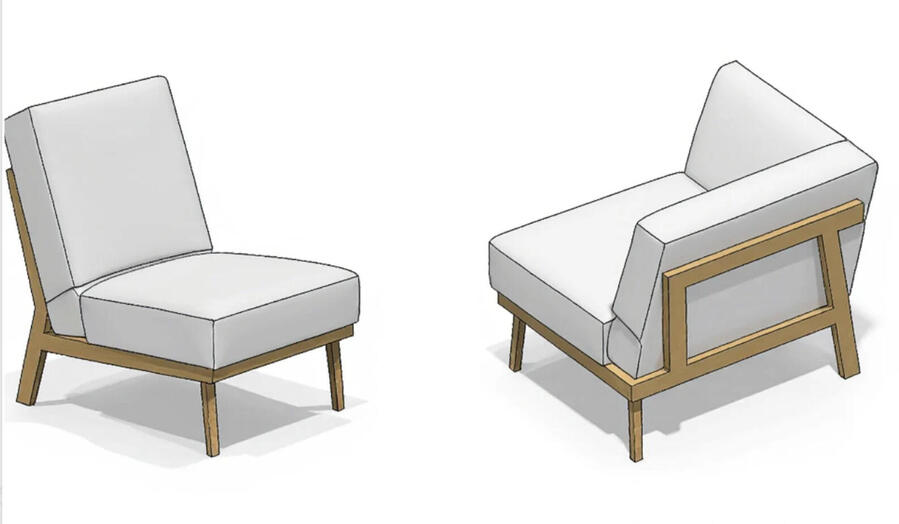
Messa in tavola di disegni costruttivi completi di quote, tolleranze, sezioni e cartiglio. Disegni costruttivi per officina pronti per la produzione, secondo le norme di disegno tecnico.
Modellazione 3D e progettazione meccanica
Modellazione 3D meccanica di particolari e assiemi, dalla progettazione meccanica 3D di nuovi componenti alla modifica di modelli esistenti.
Conversione da PDF a DWG e da cartaceo a CAD
Conversione di disegni cartacei in CAD e vettorializzazione di disegni tecnici. Trasformiamo archivi storici, scansioni e PDF in file DWG modificabili, con conversione da DWG a STEP quando serve il modello 3D.
Reverse engineering
Reverse engineering meccanico di pezzi senza disegno: rilievo e ridisegno di particolari meccanici per ricambi, modifiche o nuove produzioni.
File DXF per il taglio laser e distinta base
Preparazione di file DXF per il taglio laser, lo sviluppo di lamiere e il nesting. Estrazione della distinta base dal modello 3D per acquisti e produzione.
Carpenteria metallica e progettazione navale
Disegni per carpenteria metallica, strutture e telai. Disegno tecnico navale e progettazione navale CAD per cantieri e fornitori del settore.
I software: AutoCAD e Fusion 360

Lavoriamo con AutoCAD per il disegno 2D e con Fusion 360 per la modellazione 3D e la progettazione. Realizziamo disegni AutoCAD conto terzi e progetti in Fusion 360, con consegna nei formati DWG, DXF, STEP e PDF. Possiamo usare grossomodo tutti i cad software.
Quanto costa la progettazione CAD
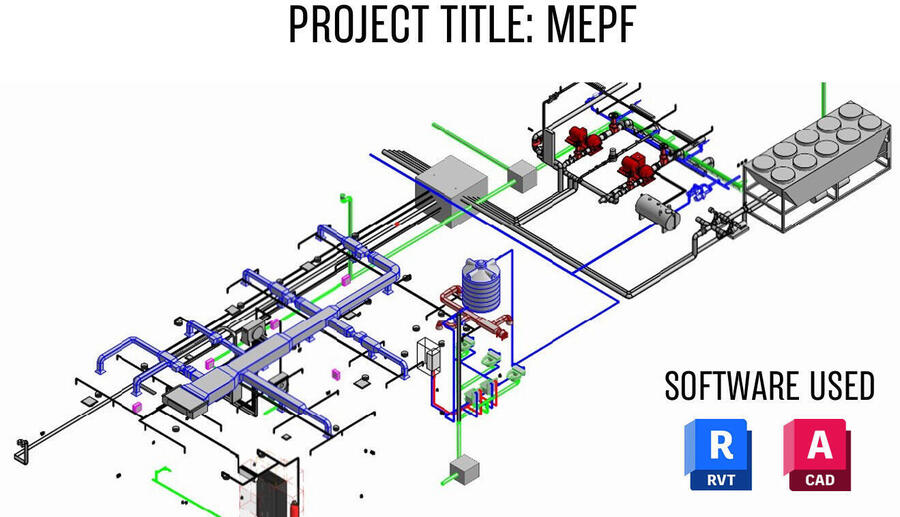
Il costo della progettazione CAD dipende dalla complessità del pezzo, dal numero di tavole e dal materiale di partenza. Per un preventivo di disegno tecnico preciso bastano pochi elementi: file o foto del materiale disponibile, quantità di disegni, formato di consegna richiesto e tempi.
Progettazione CAD a Udine, Pordenone, Trieste e in tutto il Friuli
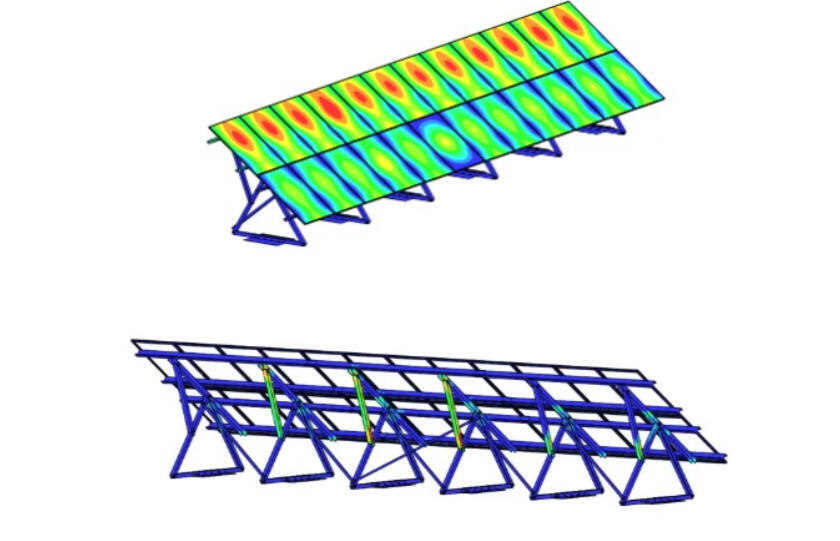
MT CAD è uno studio tecnico di progettazione meccanica in Friuli-Venezia Giulia. Seguiamo aziende a Udine, Pordenone, Trieste e Gorizia, e siamo uno studio tecnico CAD di riferimento anche per il Veneto. Il lavoro si svolge interamente a distanza, quindi seguiamo clienti in tutta Italia e all'estero.
Richiedi un preventivo
Hai disegni da realizzare, convertire o aggiornare? Scrivi a [email protected] o visita mt-cad.com: ricevi un preventivo gratuito entro 24 ore.
CAD Drafting Services and CAD Outsourcing from Italy | MT CAD
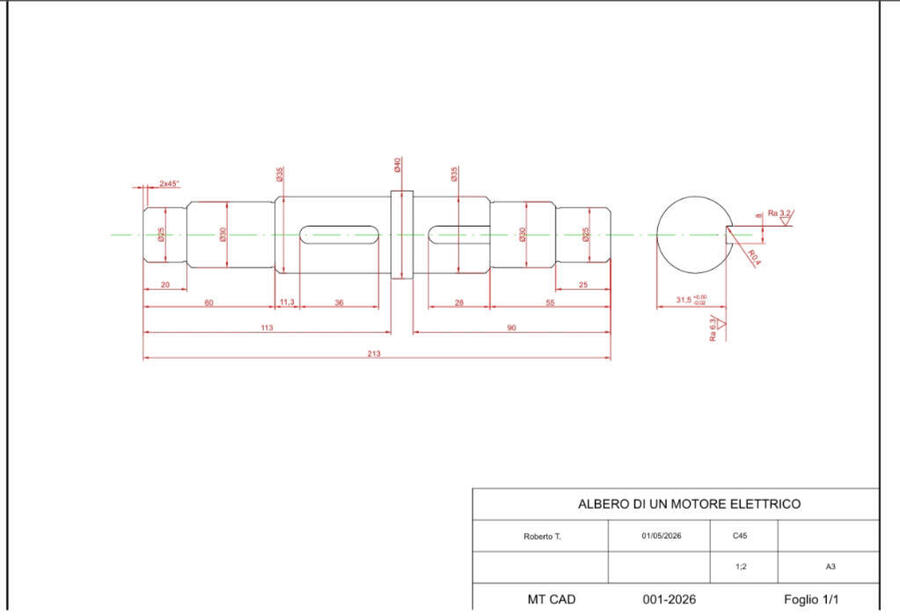
Freelance CAD designer offering mechanical drafting, 3D CAD modeling, PDF to CAD conversion, reverse engineering and sheet metal drafting. CAD design services from Italy for clients across Europe.
CAD Outsourcing Services: When It Pays to Hand Your Technical Drawings to an External Studio
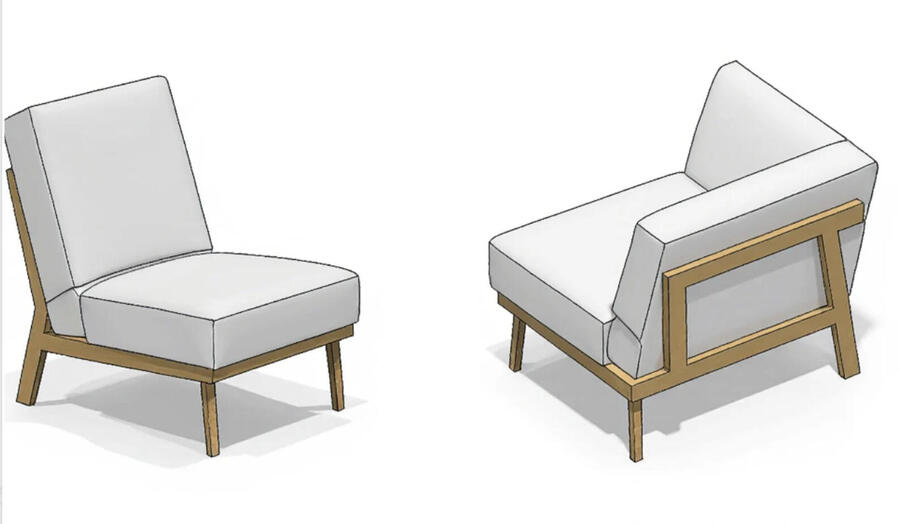
Many engineering companies, metal fabricators and machine shops face workload peaks that their in-house design office cannot absorb. Hiring a draftsman for a few months is expensive, and delaying orders costs even more. The answer is CAD outsourcing: a freelance CAD designer who works on your projects only when you need it.
MT CAD provides CAD drafting services to companies in the mechanical, marine and metal fabrication sectors. We are based in Italy and work with clients across Europe, including the Netherlands and Switzerland
What CAD Outsourcing Means
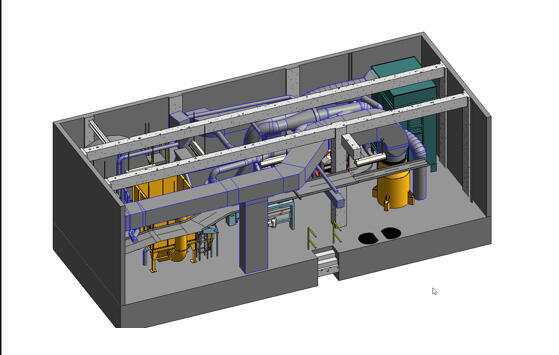
Outsourcing CAD work means sending sketches, paper drawings, PDF files or physical parts and receiving complete technical drawings, 3D models and production-ready files. You pay only for the work done, with no fixed staff costs, software licences or workstations.
Our CAD Design Services

Mechanical Drafting Services
Paragraph: Complete mechanical drawings with dimensions, tolerances, sections and title block. Production-ready shop drawings for workshops and manufacturers, drawn to international drafting standards.
3D CAD Modeling Services
Paragraph: 3D modeling of mechanical parts and assemblies, from the design of new components to the modification of existing models.
PDF to CAD Conversion Services
Paragraph: Conversion of paper drawings, scans and PDF files into editable DWG files. We turn legacy drawing archives into clean CAD data, and convert DWG to STEP when a 3D model is required.
Reverse Engineering CAD Services
Paragraph: Reverse engineering of parts without drawings: measuring and redrawing mechanical components for spare parts, modifications or new production runs.
Sheet Metal Drafting Services
Paragraph: DXF files for laser cutting, sheet metal flat patterns and nesting. Bills of materials extracted directly from the 3D model for purchasing and production.
Marine CAD Drafting
Paragraph: Technical drawings for shipyards and marine suppliers, plus steel structure and frame drawings for metal fabrication.
Software: AutoCAD and Fusion 360
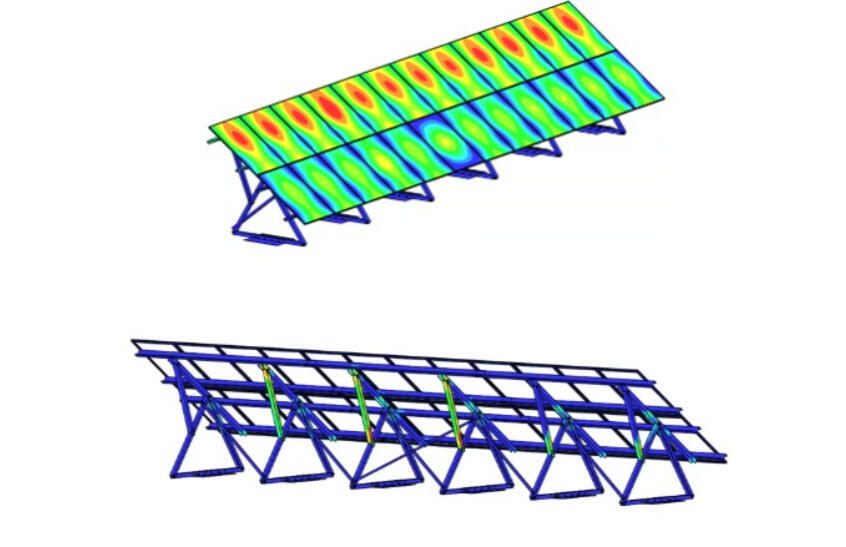
We use AutoCAD for 2D drafting and Fusion 360 for 3D modeling and design. Files are delivered in DWG, DXF, STEP and PDF formats. We can also use almost all the rest of the cad softwares.
CAD Design Services from Italy, for Clients across Europe
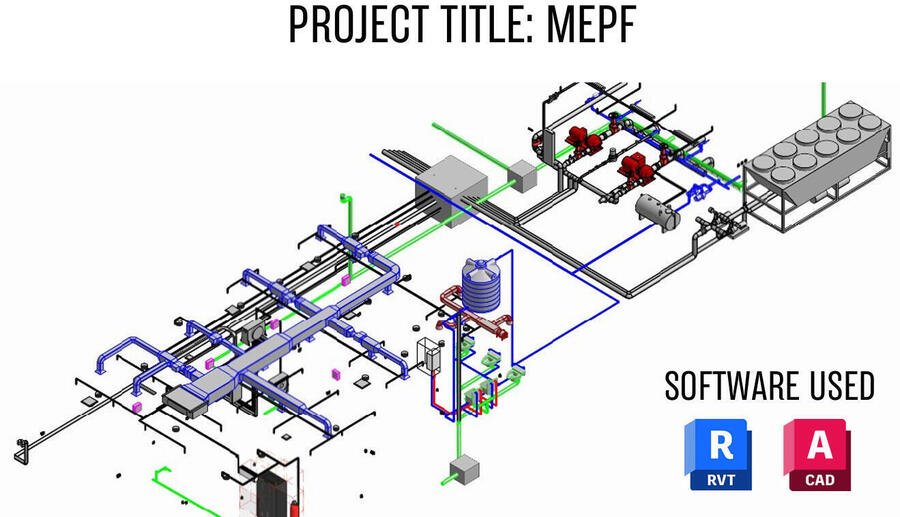
All work is carried out remotely, so the distance makes no difference to delivery. You send the material by email, we agree on scope and deadline, and you receive the finished files ready for production.
Request a Quote
Do you have drawings to create, convert or update? Email [email protected] or visit mt-cad.com for a free quote.
CAD tekenwerk uitbesteden | Technisch tekenbureau MT CAD
Freelance CAD tekenaar voor werktekeningen, constructietekeningen, 3D modellering, PDF naar CAD omzetten en reverse engineering. CAD tekenwerk uitbesteden aan een technisch tekenbureau in Italië.
CAD tekenwerk uitbesteden: wanneer loont het om technische tekeningen door een extern tekenbureau te laten maken?
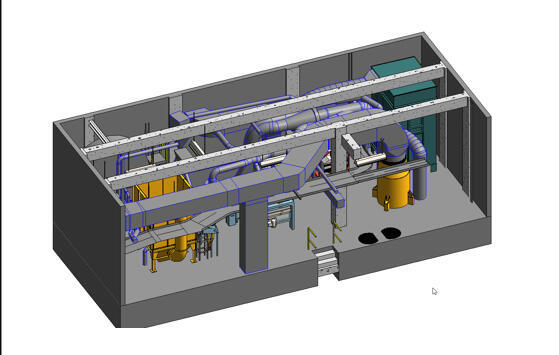
Veel machinebouwers, metaalbewerkers en constructiebedrijven hebben pieken in hun werk die de eigen tekenafdeling niet kan opvangen. Een tekenaar voor een paar maanden aannemen is duur, en opdrachten uitstellen kost nog meer. De oplossing is CAD tekenwerk uitbesteden: een freelance CAD tekenaar die alleen aan uw projecten werkt wanneer dat nodig is.
MT CAD is een technisch tekenbureau voor bedrijven in de machinebouw, de scheepsbouw en de staalconstructie. Wij zijn gevestigd in Italië en werken voor klanten in heel Europa, ook in Nederland en België.
Wat betekent CAD tekenwerk uitbesteden?

U stuurt schetsen, papieren tekeningen, PDF-bestanden of fysieke onderdelen en ontvangt complete technische tekeningen, 3D modellen en productieklare bestanden. U betaalt alleen voor het uitgevoerde werk, zonder vaste personeelskosten, softwarelicenties of werkplekken.
Onze diensten
Werktekeningen laten maken
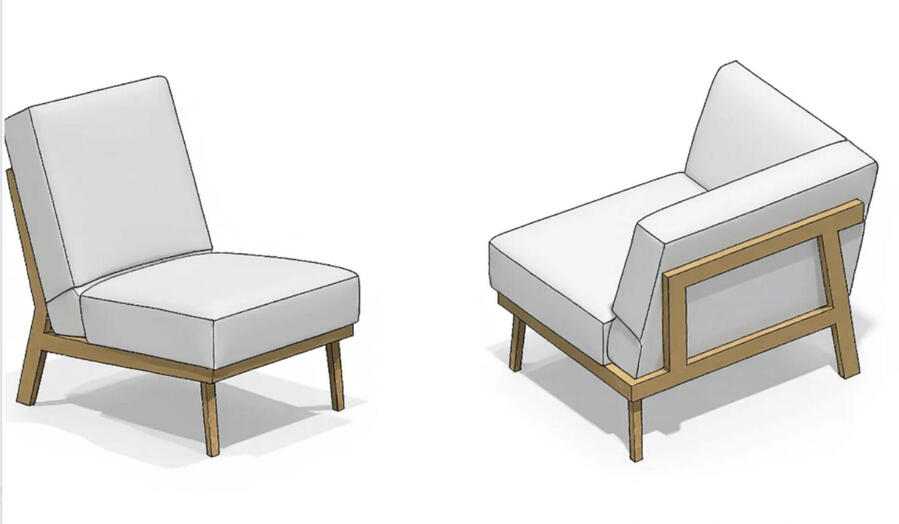
Complete werktekeningen met maatvoering, toleranties, doorsneden en titelblok, productieklaar voor de werkplaats en opgesteld volgens de geldende tekennormen.
3D modellering uitbesteden
3D modellering van mechanische onderdelen en samenstellingen, van het ontwerp van nieuwe componenten tot het aanpassen van bestaande modellen.
PDF naar CAD omzetten
Papieren tekeningen, scans en PDF-bestanden omzetten naar bewerkbare DWG-bestanden. Wij zetten oude tekeningarchieven om naar bruikbare CAD-bestanden en leveren ook STEP-bestanden wanneer een 3D model nodig is.
Reverse engineering
Reverse engineering van onderdelen zonder tekening: opmeten en natekenen van mechanische componenten voor reserveonderdelen, aanpassingen of nieuwe productie.
Constructietekeningen uitbesteden
Constructietekeningen voor staal- en plaatwerk, DXF-bestanden voor lasersnijden en nesting, en stuklijsten rechtstreeks uit het 3D model voor inkoop en productie.
Scheepsbouw
Technische tekeningen voor scheepswerven en toeleveranciers in de maritieme sector.
Software: AutoCAD, Fusion 360 und nahezu jedes andere CAD-Programm
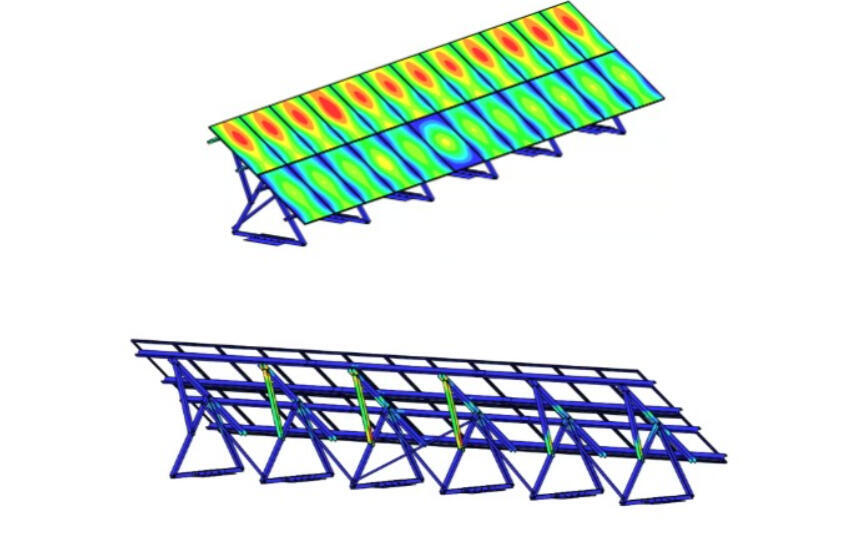
Wir arbeiten hauptsächlich mit AutoCAD für 2D-Zeichnungen und mit Fusion 360 für 3D-Modellierung und Konstruktion, können aber mit nahezu jeder gängigen CAD-Software arbeiten. So passen wir uns an die Programme und Abläufe Ihres Konstruktionsbüros an. Lieferung in DWG, DXF, STEP, PDF oder jedem anderen Format, das Sie benötigen.
Konstruktionsbüro in Italien, für Kunden in der Schweiz und in ganz Europa
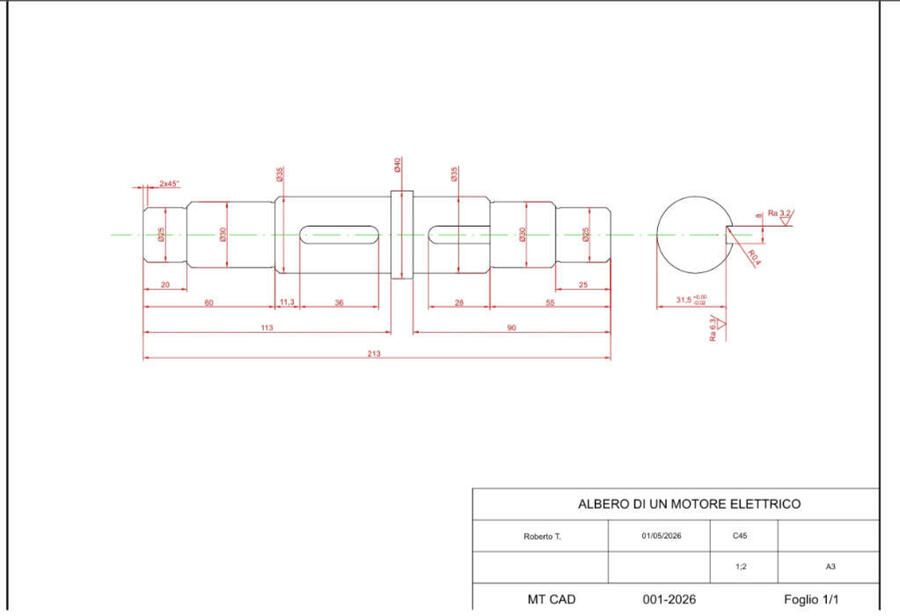
Die gesamte Arbeit erfolgt aus der Ferne, die Entfernung spielt für die Lieferung also keine Rolle. Sie senden uns die Unterlagen per E-Mail, wir vereinbaren Umfang und Liefertermin, und Sie erhalten fertigungsbereite Dateien.
Offerte anfordern
Absatz: Haben Sie Zeichnungen, die erstellt, umgewandelt oder aktualisiert werden müssen? Schreiben Sie an [email protected] oder besuchen Sie mt-cad.com für eine unverbindliche Offerte.
Come convertire un PDF in DWG: metodi, limiti ed errori da evitare
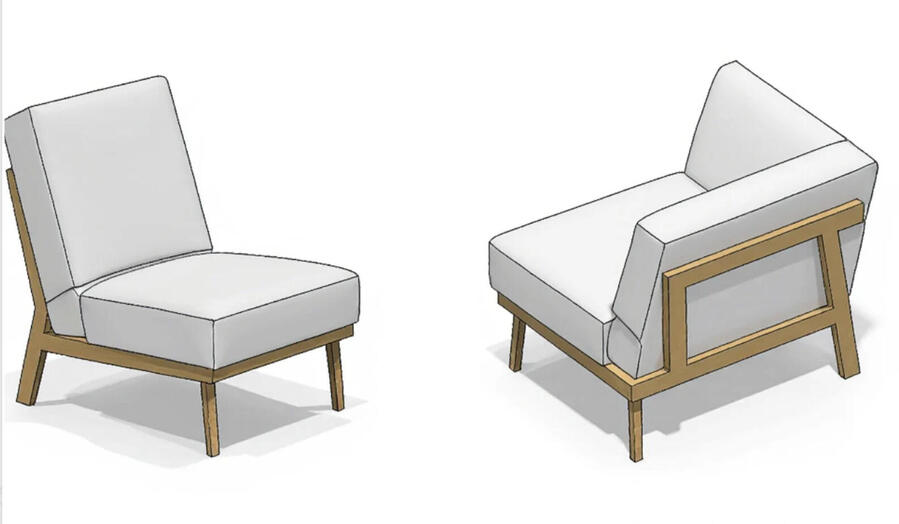
Guida pratica alla conversione da PDF a DWG con AutoCAD: differenza tra PDF vettoriale e scansione, comandi da usare, controllo della scala e pulizia del disegno.
Come convertire un PDF in DWG: metodi, limiti ed errori da evitare
Capita spesso di ricevere da un cliente o da un fornitore un disegno solo in PDF e di doverlo modificare. La conversione da PDF a DWG sembra un'operazione di un clic, ma il risultato dipende quasi del tutto da come è stato creato il PDF. In questa guida vediamo come riconoscere il tipo di file, quali comandi usare in AutoCAD e come ottenere un DWG davvero utilizzabile.
Prima di tutto: PDF vettoriale o PDF da scansione?
Un PDF vettoriale nasce da un programma CAD: contiene linee, archi e testi come oggetti geometrici. Un PDF da scansione è invece un'immagine, cioè una griglia di pixel, anche se a vista sembra identico.
Il test più rapido: ingrandisci molto il PDF. Se le linee restano nette è vettoriale; se diventano sgranate e a gradini è un'immagine. Un secondo test: prova a selezionare un testo con il cursore. Se si seleziona, il file contiene almeno in parte dati vettoriali.
Metodo 1: importare un PDF vettoriale in AutoCAD
Dalla versione 2017 AutoCAD include il comando PDFIMPORT, che trasforma la geometria del PDF in linee, polilinee, archi e testi modificabili. Nelle opzioni di importazione si può scegliere se mantenere i layer del PDF e se importare anche testi, retini e immagini.
Se i testi arrivano come tante piccole linee, significa che nel CAD d'origine erano scritti con font SHX. Il comando PDFSHXTEXT (Riconosci testo SHX) li riconverte in oggetti di testo.
Il controllo più importante: la scala
Paragrafo: Un PDF non conserva le unità del disegno originale. Dopo l'importazione le quote reali quasi sempre non tornano. Individua una quota nota, misurala con DIST e riscala tutto con il comando SCALA usando l'opzione Riferimento: indichi la lunghezza misurata e la lunghezza reale, e AutoCAD calcola il fattore da solo.
Verifica poi almeno due o tre altre quote in punti diversi del disegno. Se non tornano, il PDF potrebbe essere stato stampato con una deformazione, e in quel caso la conversione automatica non basta.
Pulizia del disegno dopo la conversione
Il DWG ottenuto da un PDF va sempre pulito. Le operazioni tipiche sono: eliminare linee sovrapposte e duplicate con il comando OVERKILL, unire i segmenti spezzati con UNISCI, rimettere gli oggetti sui layer corretti e sostituire i retini importati con retini veri.
Paragrafo: Attenzione alle quote: dal PDF arrivano come semplici linee e testi, non come quote associative. Se il disegno va modificato, conviene ricrearle.
Metodo 2: PDF da scansione
Un PDF da scansione non contiene geometria, quindi PDFIMPORT non può ricavarne linee. Esistono programmi di vettorializzazione automatica, ma su disegni tecnici producono spesso linee tremolanti, archi spezzati e testi illeggibili: il tempo per correggerli supera spesso quello di un ridisegno.
Il metodo più affidabile è inserire l'immagine come riferimento (comando IMMAGINE o IMAGEATTACH), portarla in scala su una quota nota e ridisegnare sopra, usando le quote scritte come dato di riferimento e non la geometria dell'immagine.
Gli errori più comuni
Fidarsi delle misure prese sul PDF invece che delle quote scritte. Dimenticare di controllare la scala. Usare convertitori online con disegni riservati dei clienti. Consegnare un DWG pieno di linee doppie e segmenti spezzati, difficile da modificare per chi lo riceve.
Quando conviene ridisegnare da zero
: Se il PDF è una scansione di bassa qualità, se il disegno è vecchio e poco leggibile, o se il DWG servirà come base per nuove revisioni, ridisegnare è quasi sempre la scelta migliore: si ottiene un file pulito, con layer, quote e blocchi corretti.
In sintesi
PDF vettoriale: PDFIMPORT, controllo della scala, pulizia. PDF da scansione: immagine in scala e ridisegno. In entrambi i casi le quote scritte sul disegno valgono più della geometria.
Se hai un archivio di disegni in PDF o cartaceo da convertire, MT CAD si occupa di conversioni e ridisegni conto terzi: scrivi a [email protected].
Quanto costa un disegno tecnico? Da cosa dipende il costo della progettazione CAD
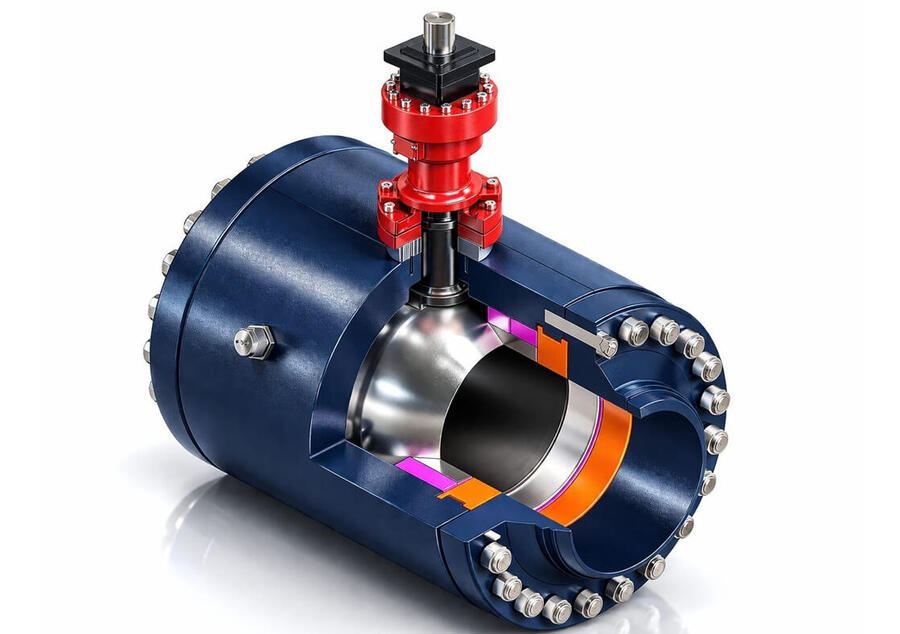
Quanto costa un disegno tecnico? Da cosa dipende il costo della progettazione CAD
Cosa determina il costo di un disegno tecnico e della progettazione CAD: complessità, materiale di partenza, 2D o 3D, revisioni e tempi. Come ottenere un preventivo preciso e risparmiare.Quanto costa un disegno tecnico: da cosa dipende il prezzo
"Quanto costa un disegno tecnico?" è una delle domande più frequenti, e la risposta onesta è: dipende. Due disegni che sembrano simili possono richiedere tempi molto diversi. In questa guida vediamo quali fattori determinano il costo della progettazione CAD, come vengono calcolati i prezzi e come preparare una richiesta per ottenere un preventivo preciso e spendere meno.
Come si calcola il prezzo: le tre formule più usate
A ore
Si paga il tempo effettivo di lavoro. È la formula più usata per lavori difficili da stimare in anticipo, come modifiche a progetti esistenti o reverse engineering. Conviene chiedere una stima delle ore prima di iniziare.
A tavola
Un prezzo fisso per ogni disegno, di solito differenziato per formato e complessità. È comodo per lavori ripetitivi, come la messa in tavola di tanti particolari simili o la conversione di un archivio.
A corpo
Un prezzo unico per tutto il lavoro, concordato prima di iniziare. Dà certezza sul costo finale, ma richiede che il lavoro sia definito con precisione: tutto ciò che non è scritto nel preventivo diventa un extra.
I fattori che determinano il costo
1. Complessità del pezzo
Una flangia con quattro fori e un carter in lamiera con decine di pieghe non richiedono lo stesso tempo. Contano il numero di viste e sezioni necessarie, le superfici complesse, i dettagli e le lavorazioni da rappresentare.
2. Materiale di partenza
È il fattore più sottovalutato. Partire da un modello 3D esistente è rapido; partire da un PDF vettoriale richiede conversione e pulizia; partire da uno schizzo a mano o da una scansione significa ridisegnare; partire da un pezzo fisico richiede rilievo e misurazione, cioè reverse engineering, che è il caso più costoso.
3. Disegno 2D, modello 3D o entrambi
Un disegno 2D costa meno di un modello 3D con relativa messa in tavola. Il modello 3D però permette di ricavare più tavole, la distinta base, gli sviluppi della lamiera e i file per le macchine, e spesso fa risparmiare sulle fasi successive.
4. Livello di dettaglio richiesto
Un disegno d'ingombro è molto più semplice di un disegno costruttivo per l'officina completo di tolleranze dimensionali e geometriche, rugosità, simboli di saldatura e trattamenti. Più informazioni deve contenere il disegno, più tempo serve per inserirle e controllarle.
5. Assiemi e distinta base
Un assieme richiede di disegnare ogni componente, verificare gli accoppiamenti e preparare la distinta base. Il costo cresce con il numero di parti, non solo con le dimensioni dell'insieme.
6. Standard e cartiglio del cliente
Lavorare con il cartiglio, i layer, gli stili di quota e le regole di codifica del cliente richiede una fase iniziale di impostazione. Sulle commesse ripetute questo costo si ammortizza.
7. Revisioni
Ogni modifica dopo la consegna ha un costo. Molti preventivi superati nascono da qui: specifiche cambiate a lavoro avviato o revisioni non previste. È utile concordare in anticipo quante revisioni sono comprese nel prezzo.
8. Tempi di consegna
Un lavoro urgente obbliga a riorganizzare le altre commesse o a lavorare oltre l'orario normale, e di solito ha un costo maggiore.
9. Software e formato di consegna
Se il cliente richiede un software specifico o un formato particolare, può servire tempo in più per la conversione e il controllo dei file. Chiarire subito i formati (DWG, DXF, STEP, PDF o nativi) evita sorprese.
[Da completare: fasce di prezzo indicative]
[Inserisci qui alcuni esempi con i tuoi prezzi reali: disegno 2D semplice, messa in tavola di un particolare da modello 3D, conversione da PDF a DWG per tavola, reverse engineering di un pezzo semplice]
Come ottenere un preventivo preciso
Per un preventivo affidabile servono: il materiale di partenza (file, foto o PDF), il numero di pezzi o tavole, il tipo di risultato richiesto (2D, 3D o entrambi), il livello di dettaglio, i formati di consegna, eventuali standard o cartiglio da usare e la data di consegna desiderata.
Come spendere meno senza perdere qualità
Invia tutto il materiale disponibile fin dall'inizio, anche se parziale. Indica chiaramente le quote critiche. Raggruppa più disegni in un'unica richiesta. Definisci le specifiche prima di iniziare, non durante il lavoro. Pianifica i tempi per evitare i costi dell'urgenza.
Attenzione al prezzo più basso
Un disegno tecnico sbagliato non costa quanto il disegno: costa quanto i pezzi prodotti male. Un errore di quota o di tolleranza può significare materiale da buttare, lavorazioni da rifare e ritardi nelle consegne. Nel confronto tra preventivi conviene valutare anche esperienza, controllo del disegno e chiarezza su cosa è incluso.
In sintesi
Il costo di un disegno tecnico dipende soprattutto da complessità, materiale di partenza, livello di dettaglio e revisioni. Più la richiesta è chiara e completa, più il preventivo sarà preciso e basso.
Hai un progetto da valutare? MT CAD prepara preventivi per disegni tecnici, modellazione 3D, conversioni e reverse engineering: scrivi a [email protected] con il materiale disponibile.
Mechanical Reverse Engineering: How to Redraw a Part Without a Drawing

A practical guide to mechanical reverse engineering: measuring tools, 3D scanning, design intent, tolerances and CAD modeling to recreate a part when no drawing exists.Mechanical Reverse Engineering: How to Redraw a Part Without a Drawing
A machine stops, a component breaks, and the original manufacturer no longer exists or no longer supplies spare parts. Or a company has been producing a part for years without ever having a proper drawing of it. In both cases the solution is mechanical reverse engineering: recreating the CAD model and technical drawing starting from the physical part. In this guide we look at how the process works, which tools are used and which mistakes to avoid.
What Mechanical Reverse Engineering Is
Reverse engineering means going backwards from the finished object to the design data. The goal is not simply to copy the dimensions of the part, but to rebuild the information needed to manufacture it again: geometry, nominal dimensions, tolerances, material, surface finish and heat treatment.
Step 1: Define the Purpose
Before measuring anything, it is essential to know what the drawing will be used for. A spare part that must fit an existing machine, a part to be modified or improved, or a component to be documented for future production each require a different level of detail. The purpose defines which dimensions are critical and how accurate the measurements must be.
Step 2: Clean and Inspect the Part
The part must be cleaned of oil, dirt and paint residue that would falsify the measurements. Then it is inspected for wear, deformation, cracks and damage. A worn shaft or a deformed flange no longer shows the original dimensions: identifying these areas in advance prevents copying a defect into the new drawing.
Step 3: Measure the Part
For prismatic and turned parts, traditional measuring tools are usually enough: calipers, micrometers, bore gauges, height gauges, thread gauges and radius gauges. Each dimension should be measured several times and at several points, to detect ovality, taper and wear.
For more precise work, a coordinate measuring machine (CMM) measures points with an accuracy of a few microns and is the reference for parts with tight tolerances.
For complex or freeform shapes, such as castings, blades or ergonomic surfaces, 3D scanning with a laser or structured light scanner captures millions of points. The result is a mesh (usually an STL file), which is not yet a usable CAD model: it must be rebuilt as surfaces or solids.
Step 4: Rebuild the Design Intent
This is the step that separates a good reverse engineering job from a simple copy. A measured value of 24.97 mm is almost certainly a nominal 25 mm. A bore of 12.01 mm that houses a bearing probably has a standard fit. The designer must interpret the measurements and return to the values the original engineer chose: standard sizes, metric or imperial threads, standard fits, round numbers and common angles.
Mating parts are an important source of information. If the part fits onto a shaft, into a housing or against a flange, those components help define the correct dimensions and tolerances.
Step 5: Identify Material and Finish
The drawing must specify what the part is made of. Material can be identified by hardness testing, spectrometric analysis, or in simpler cases by weight, colour, magnetism and application. Surface roughness, coatings and heat treatments must also be identified, because they affect the function and the life of the part.
Step 6: Create the CAD Model
With the measurements and design intent defined, the part is modeled in 3D CAD software such as Fusion 360, SolidWorks or Inventor. For scanned parts, the mesh is used as a reference to build clean surfaces and solids. The model is then checked against the scan data or the original measurements, and virtually assembled with the mating parts to verify the fit.
Step 7: Produce the Technical Drawing
The final step is the manufacturing drawing: views, sections, dimensions, tolerances, geometric tolerances where needed, roughness, material and treatments. A reverse engineering drawing should be as complete as an original design drawing, because the workshop will manufacture the part from it alone.
Step 8: Verify with a First Article
Whenever possible, a first part is produced and checked on the machine or in the assembly before starting a production run. This confirms that the interpretation of dimensions and tolerances was correct.
Common Mistakes
Copying worn or deformed dimensions instead of the original ones. Measuring each feature only once. Ignoring mating parts. Leaving tolerances undefined, so the workshop has to guess. Treating a 3D scan mesh as a finished CAD model. Forgetting material and heat treatment.
A Note on Intellectual Property
Reverse engineering a part for maintenance of your own machines is common practice, but producing and selling copies of parts protected by patents or registered designs can infringe the rights of the owner. When in doubt, check the legal position before starting production.
Summary
Mechanical reverse engineering is not just measuring a part: it means understanding how it was designed. Clear purpose, accurate measurements, correct interpretation of design intent and a complete drawing are what make it possible to manufacture a part that works the first time.
Do you need to recreate a part without a drawing? MT CAD offers reverse engineering CAD services, from measurement to the finished 3D model and manufacturing drawing. Email [email protected] with photos and a description of the part.
DXF für Laserschneiden vorbereiten: Leitfaden für Blechteile
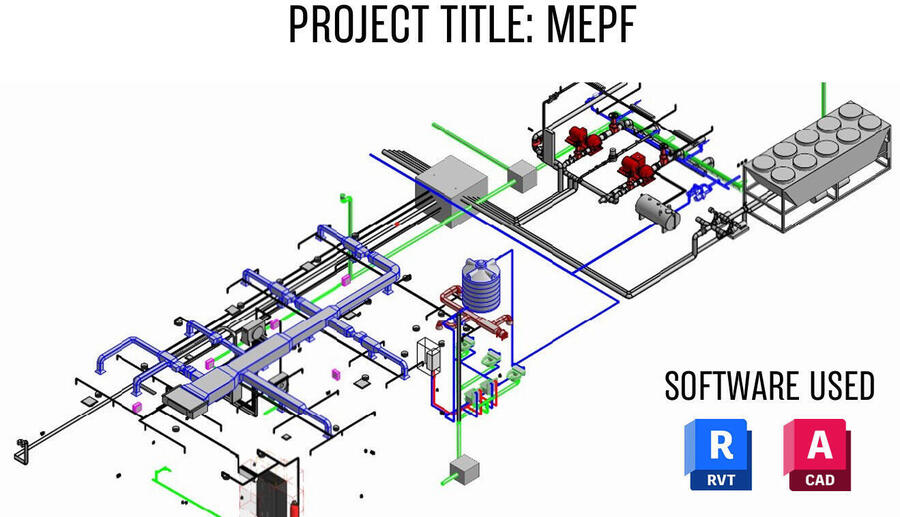
So bereiten Sie eine DXF-Datei für das Laserschneiden richtig vor: Massstab, geschlossene Konturen, Layer, Abwicklung, Bohrungsdurchmesser und die häufigsten Fehler bei Blechteilen.DXF für das Laserschneiden vorbereiten: So entstehen fehlerfreie Blechteile
Die DXF-Datei ist die Sprache zwischen Konstrukteur und Laserschneidanlage. Eine gut vorbereitete Datei wird direkt in die CAM-Software übernommen und geschnitten. Eine fehlerhafte Datei führt zu Rückfragen, Verzögerungen oder im schlimmsten Fall zu Ausschuss. In diesem Leitfaden zeigen wir, wie eine DXF für das Laserschneiden aufgebaut sein muss und welche Fehler am häufigsten auftreten.
1. Massstab 1:1 und Millimeter
Die Geometrie muss im Massstab 1:1 und in Millimetern gezeichnet sein. Eine DXF-Datei überträgt die Einheiten nicht immer zuverlässig: Wird ein in Zoll oder im falschen Massstab gezeichnetes Teil importiert, kann es zehnmal zu gross oder zu klein ankommen. Vor dem Export lohnt es sich, ein bekanntes Mass mit dem Messbefehl zu kontrollieren.
2. Nur 2D-Geometrie
Die Laserschneidanlage arbeitet in der Ebene. Alle Elemente müssen auf Z = 0 liegen, ohne 3D-Körper, Flächen oder Linien mit unterschiedlicher Höhe. In AutoCAD hilft der Befehl FLATTEN (ABFLACHEN), versehentlich angehobene Elemente auf die Ebene zu bringen.
3. Geschlossene Konturen
Jede Aussenkontur und jede Bohrung muss eine geschlossene Kontur sein. Schon eine Lücke von wenigen Hundertstelmillimetern zwischen zwei Linien kann dazu führen, dass die CAM-Software die Kontur nicht erkennt. Am besten werden die Konturen mit VERBINDEN (JOIN) zu geschlossenen Polylinien zusammengefasst: Lässt sich eine Kontur nicht schliessen, ist irgendwo eine Lücke.
4. Keine doppelten oder überlappenden Linien
Doppelte Linien sind einer der häufigsten Fehler. Die Anlage schneidet dieselbe Kontur zweimal, verliert Zeit und kann die Schnittkante beschädigen. Der Befehl OVERKILL entfernt doppelte und überlappende Elemente automatisch.
5. Nur Schneidgeometrie in der Datei
Bemassung, Schriftfeld, Mittellinien, Schraffuren und Hinweise gehören nicht in die Schneiddatei. Sie werden entweder gelöscht oder auf eigene Layer gelegt, die der Laserbetrieb ausblenden kann. Diese Informationen gehören in eine separate PDF-Zeichnung.
6. Layer sinnvoll trennen
Werden neben dem Schneiden weitere Bearbeitungen verlangt, etwa Gravieren, Markieren oder Biegelinien, gehören sie auf getrennte, klar benannte Layer, zum Beispiel SCHNEIDEN, GRAVUR und BIEGELINIEN. So weiss der Laserbetrieb sofort, welche Linie welche Bearbeitung bedeutet.
7. Splines vermeiden
Nicht jede CAM-Software verarbeitet Splines sauber. Freiformkurven werden besser vor dem Export in Bögen und Polylinien umgewandelt, damit die Kontur glatt und exakt geschnitten wird.
8. Nennmass zeichnen, nicht die Schnittfuge kompensieren
Die Schnittfuge des Lasers wird von der CAM-Software automatisch berücksichtigt. In der DXF-Datei wird deshalb immer das Nennmass des fertigen Teils gezeichnet, ohne manuelle Korrektur.
9. Kleine Bohrungen und schmale Stege
Als Faustregel sollte der Durchmesser einer Bohrung bei Stahl nicht kleiner sein als die Blechdicke; bei Edelstahl und Aluminium sind oft grössere Werte nötig. Auch sehr schmale Stege zwischen zwei Konturen können sich durch die Wärme verformen. Die genauen Grenzwerte hängen von Anlage und Werkstoff ab und sollten mit dem Laserbetrieb abgestimmt werden.
10. Texte und Gravuren
Texte, die geschnitten oder graviert werden sollen, müssen in Geometrie umgewandelt werden, sonst hängt das Ergebnis von den Schriftarten auf dem Rechner des Laserbetriebs ab. Bei geschnittenen Texten brauchen geschlossene Buchstaben wie O, A oder B Stege, damit die Innenteile nicht herausfallen.
11. Die Abwicklung von Biegeteilen
Für Teile, die nach dem Schneiden abgekantet werden, muss die DXF die Abwicklung enthalten, also das flache Teil vor dem Biegen. Die Länge der Abwicklung hängt von Blechdicke, Biegeradius, Werkstoff und K-Faktor ab. In Fusion 360, SolidWorks oder Inventor wird die Abwicklung direkt aus dem Blechmodell erzeugt und als DXF exportiert. Wichtig ist, mit dem Biegebetrieb die Werte für Radius und K-Faktor abzustimmen, die zu seinen Werkzeugen passen. An Biegeecken verhindern Freischnitte, dass das Material reisst.
12. Eine Datei pro Teil und klare Dateinamen
Am übersichtlichsten ist eine DXF-Datei pro Teil, mit Werkstoff, Blechdicke und Stückzahl im Dateinamen, zum Beispiel: HalterS2353mm_20Stk.dxf. Die Verschachtelung der Teile auf der Blechtafel, das Nesting, übernimmt der Laserbetrieb mit seiner Software.
13. DXF-Version
Neuere DXF-Versionen werden nicht von jeder Anlage gelesen. Im Zweifel empfiehlt sich der Export in einer älteren, weit verbreiteten Version oder eine kurze Rückfrage beim Laserbetrieb.
Checkliste vor dem Versand
Massstab 1:1 in Millimetern. Nur 2D auf Z = 0. Alle Konturen geschlossen. Keine doppelten Linien. Keine Bemassung und kein Schriftfeld auf dem Schneidlayer. Getrennte Layer für Gravur und Biegelinien. Splines umgewandelt. Texte in Geometrie umgewandelt. Abwicklung mit abgestimmtem K-Faktor. Dateiname mit Werkstoff, Dicke und Stückzahl. PDF-Zeichnung beigelegt.
Fazit
Eine saubere DXF-Datei spart Zeit, Rückfragen und Material. Die meisten Probleme entstehen durch offene Konturen, doppelte Linien, falsche Einheiten und überflüssige Elemente: Mit ein paar Kontrollen vor dem Versand lassen sie sich vollständig vermeiden.
Brauchen Sie DXF-Dateien für das Laserschneiden oder Abwicklungen von Blechteilen? MT CAD erstellt fertigungsbereite DXF-Dateien aus Skizzen, PDF-Zeichnungen oder 3D-Modellen. Schreiben Sie an [email protected].